How to use the wheel
This wheel helps you pick one thing at random. You write your choices, press the big yellow button, and the wheel chooses. This guide shows every part, one small step at a time, with pictures.
Put your choices on the wheel
Your choices live in the box called Your choices. Each choice becomes one slice of the wheel.
- Tap the box that says Add a choice.
- Type a choice, like Pizza.
- Press Enter, or tap the yellow + button. Done! It's on the wheel.
Want to add lots at once? Put a comma between them. Ana, Ben, Cleo adds three choices in one go. You can also paste a list, one choice on each line.

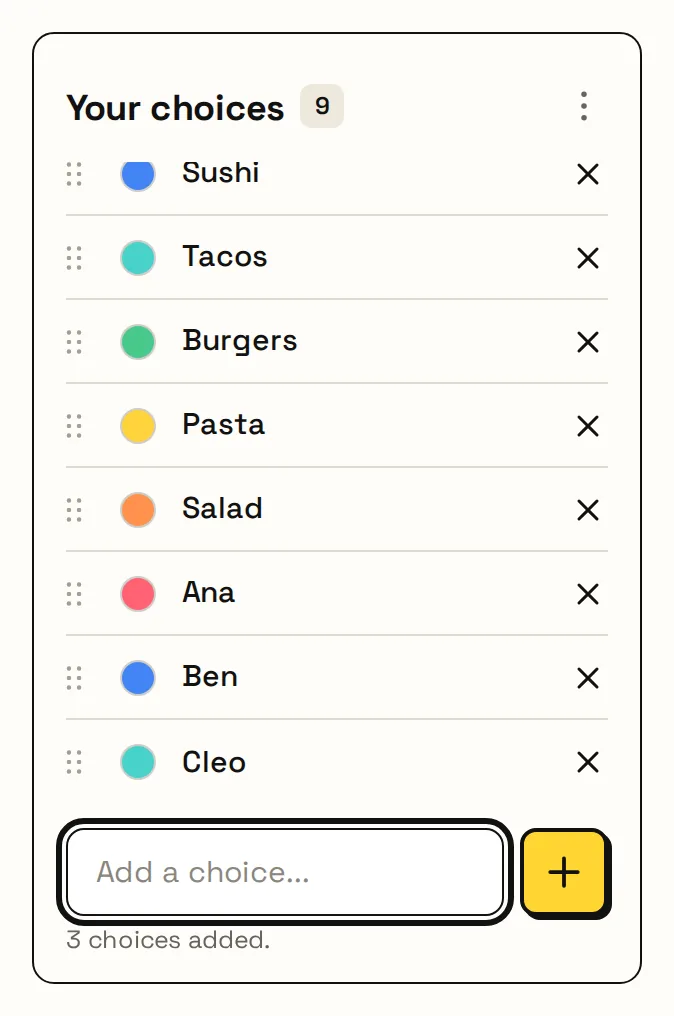
You can have up to 100 choices. You need at least 2 to spin.
Typed the same thing twice? That's allowed. It just gets two slices, so it's twice as likely to win.
Move choices and change colors
Every choice has two little helpers on its left: a grip (six dots) and a color dot.
- To move a choice, press and hold the grip, then drag it up or down. Let go where you want it.
- No mouse? Tap the grip, then use the arrow keys to move it.
- To change a color, tap the color dot and pick a new one.


When you color one choice, every copy of it changes too. So all your Yes slices stay green.
Pick Automatic to go back to the wheel's own colors.
Give your wheel a name
Your wheel has a name at the top. It starts with a name for you, like Spin the Wheel or Wheel of Names.
- Tap the name (it has a little pencil next to it).
- Type a new name, like Class 3B helpers.
- Press Enter to save. Press Esc if you change your mind.


The name shows big when you go fullscreen, and it can go on your spin video too. Delete the name and press Enter to get the starting name back.
Start with a ready-made wheel
Don't want to type? Use a ready-made wheel. The bar under the wheel has six of them: Names, Yes / No, Numbers, Teams, Decisions and Colors.

Tap one and the wheel fills up straight away. The wheel's name changes to match, for example Wheel of Names. You can still change any choice afterwards.
Further down the page there are even more: Popular wheels, and Popular tools for things like numbers and teams.

Spin the wheel
- Press the big yellow SPIN THE WHEEL button.
- Watch the wheel spin and slow down.
- The red pin at the top points at the winner.
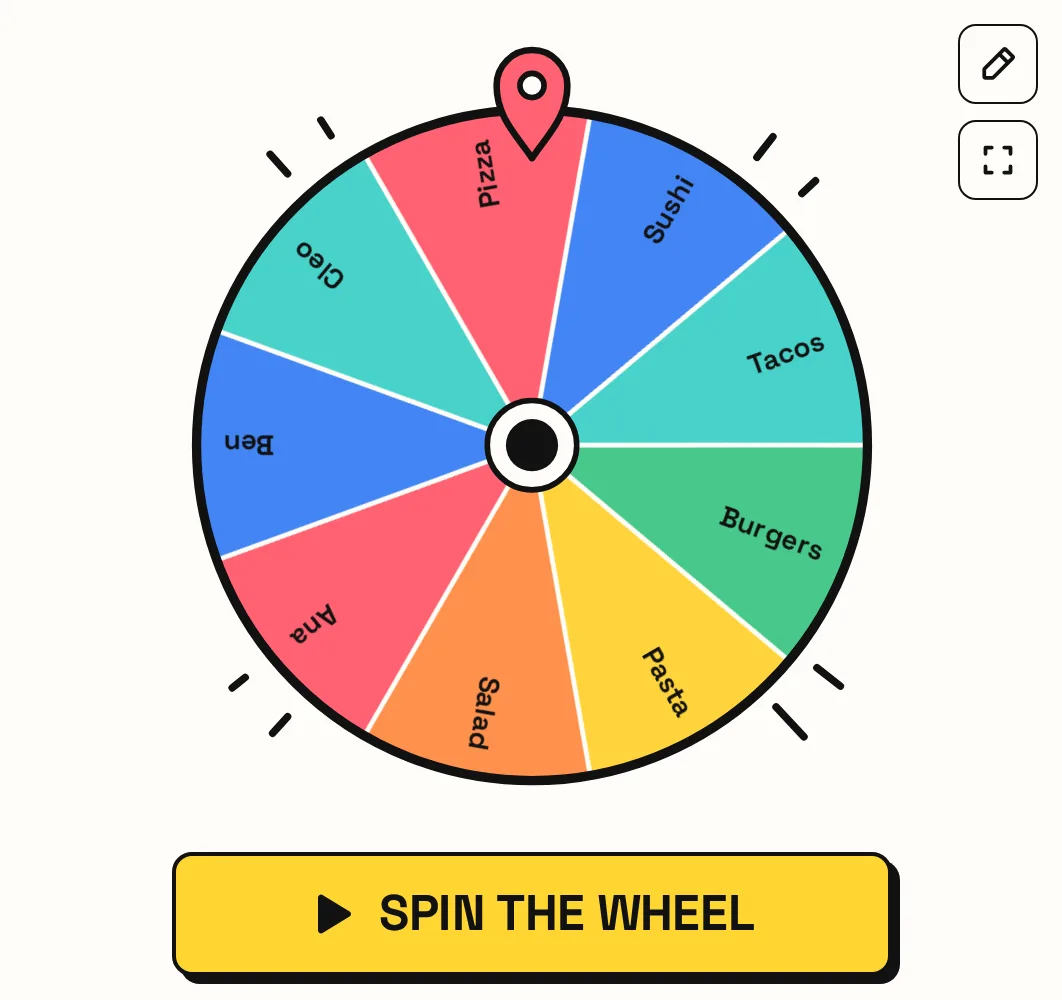

While the wheel is spinning, the list is locked so nobody can change it halfway. It unlocks as soon as the wheel stops.
What to do with the winner
When the wheel stops, the winner pops up. You can do three things:
- Spin again: spin once more. The winner stays on the wheel.
- Remove winner: take the winner off the wheel, so it can't win again.
- Video: make a short video of this spin to share (see Share a video of your spin).

You can choose how the winner is shown in Advanced settings: as a card, as a slim banner where the Spin button was, or as a small label on the wheel.


Shuffle, sort, reset or clear
Tap the three dots at the top of Your choices to open a small menu.

- Shuffle mixes up the order of the slices. It doesn't change who is more likely to win.
- Sort A–Z puts your choices in alphabetical order.
- Reset to defaults brings back the starting choices.
- Clear all empties the list so you can start fresh.
Make it faster, quieter or bigger
Tap the pencil next to the wheel. A small panel opens with three easy settings.

- Spin speed: Slow (the snail), Normal or Fast.
- Sound: Off, Classic, Soft or Arcade. You'll hear a little sample when you pick one.
- Text size: Small, Medium or Large. Large is great for a big screen.
These settings only change how the wheel looks and sounds. They never change who wins.
Advanced settings
At the bottom of the pencil panel, tap Advanced settings. It has three tabs.
Wheel tab: choose exactly how long the spin lasts (1 to 30 seconds), hide the names until the end (Blind mode), make the pointer take each slice's color, remove the winner automatically after 5 seconds, and pick how the winner is shown.

Sound tab: turn the clicks and the winner sound on or off, pick their style (press the play button to listen), add a soft whoosh while it spins, mute everything, or change the volume.

Style tab: give the whole wheel new colors. There are 22 styles, like Pastels, Ocean and Neon arcade. Use the search box to find one.

Made a mess? Press Reset all at the bottom to go back to normal.
Show it on a big screen
Using a projector or TV? Tap the square-corners button next to the wheel to go fullscreen. The wheel gets big and stays in the middle.

- Tap Edit choices to show or hide your list.
- Tap Exit fullscreen (or press Esc) to go back.
Share a video of your spin
After a spin, you can turn it into a short video for Instagram, TikTok, YouTube Shorts, WhatsApp, X or Facebook.
- Spin the wheel.
- On the winner card, tap Video.
- Pick where you'll post it. The right shape is chosen for you.
- Keep Show the wheel title ticked if you want your wheel's name in the video.
- Tap Create video, then download or share it.


On a phone, tap Share… to send the video straight into the app.
Is it really fair?
Yes. Every slice has the same chance. With 6 choices, each one has a 1 in 6 chance.
Here's the secret: the winner is picked first, before the wheel moves. Your browser has a special random number maker built in (it's called crypto.getRandomValues), and we use it to choose. Then the wheel spins to land on that winner.
So the speed, the sounds and the colors are just for fun. They can't change who wins. And it all happens on your device, so nothing is sent away.
Where your wheel is kept
Your choices, your wheel's name and your settings are saved in your browser on this device. Close the page, come back later, and they're still there.
- There's no account and nothing to sign in to.
- Another phone or computer won't see your wheel.
- Clearing your browser's history or site data will clear your wheel too.
Good to know: limits
A few limits keep the wheel quick and easy to read. Here they all are in one place.
- Choices: up to 100 on one wheel. You need at least 2 to spin.
- Each choice: up to 80 letters. A counter shows up when you get close.
- Names on the wheel: shown up to 40 choices. With more, the slices stay but the names hide. Every choice still has the same chance.
- Wheel name: up to 60 letters.
- Spin time: 1 to 30 seconds (Advanced settings). A spin video lasts about 3 seconds longer than the spin.
- Numbers tool: whole numbers from −1 billion to 1 billion, up to 1,000 at a time.
- Teams tool: up to 500 names at a time.
- History on tool pages: your last 50 spins.
Hit a limit? The wheel tells you right away what happened, so nothing disappears without a message.
Fun ways to use it
Here are some ideas. Each one goes to a wheel or tool made for that job.
Frequently asked questions
Is AllSpinWheels free?
Yes. Spin as much as you like.
Do I need an account?
No. Open the page and start spinning.
Is the wheel actually random?
Yes. The winner is picked with your browser's secure random number maker before the wheel moves, and every slice has the same chance.
How do I add lots of choices at once?
Put commas between them, like Ana, Ben, Cleo, or paste a list with one choice on each line.
How many choices can I add?
Up to 100. You need at least 2 to spin.
Are there any limits?
Yes, a few: 100 choices per wheel, 80 letters per choice, 60 letters for the wheel name, and spins from 1 to 30 seconds. Names hide on the wheel above 40 choices, but every choice keeps the same chance. See Good to know: limits for the full list.
How do I stop the same choice winning twice?
Press Remove winner after each spin, or turn on Auto-remove winner in Advanced settings.
How do I make the wheel spin longer?
Open the pencil, then Advanced settings, and turn on a custom duration. You can pick anything from 1 to 30 seconds.
Can I change the colors?
Yes. Tap a choice's color dot to change just that one, or pick a whole new style in Advanced settings → Style.
Does the wheel save my choices?
Yes, in your browser on this device. Reset to defaults brings back the starting wheel.
Does it work on phones?
Yes. Everything works on phones, tablets and computers.
Can I use it in a classroom?
Yes. Paste your class list, go fullscreen, and remove each winner so every student gets a turn.
Can I use it for giveaways?
Yes. Add each person's name and spin. If your giveaway has official rules, check that a browser-based random pick is allowed.