How to use the Image Picker Wheel
The Image Picker Wheel spins your own pictures and picks one. Here's how to add images, manage them and see the result.
Quick start
- Press Add images and choose several pictures at once.
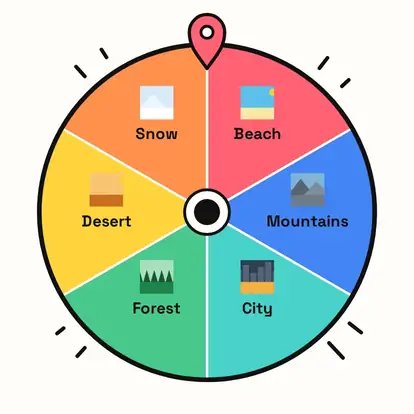
- Each image becomes a slice with its thumbnail.
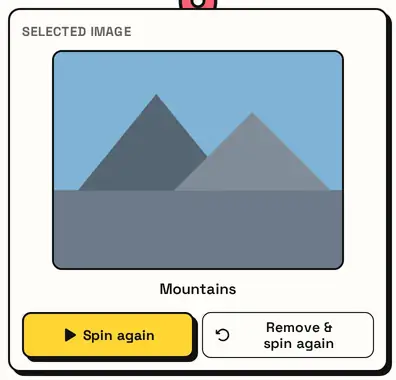
- Spin. The selected image is shown large.
- Remove & spin again to take it off and keep going.
Add your images
Press Add images and choose up to 40 pictures at once. They're read in your browser and kept only in this tab: nothing is uploaded, and they clear when you close the page.

Your pictures on the wheel
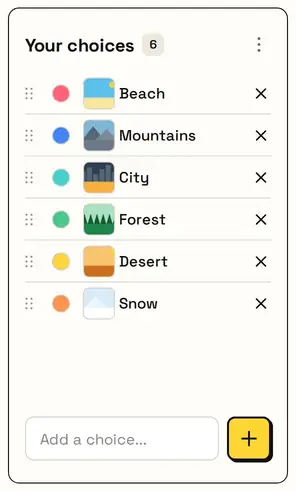
Each image becomes a slice with its thumbnail and name. The list shows them too, so you can remove one, shuffle the order or clear them all.
The selected image
The result shows the picked image large, with its name. Remove & spin again takes it off the wheel and picks the next one.
Great for
- Picking a photo for a contest
- Classroom picture prompts
- Choosing an outfit from photos
- Giveaway prize reveals
- Art reference picks
- Game nights with picture cards
Customize everything else
The image wheel uses the same spinner as the homepage, so fullscreen, sounds and spin videos work here too. The full wheel guide explains them with pictures:
FAQ
Are my images uploaded?
No. They stay in your browser tab and are never sent anywhere.
Why are my images gone after reloading?
Images aren't saved, for privacy. Add them again when you return.
How many images can I add?
Up to 40 at a time.
Can I remove an image after it's picked?
Yes. Use Remove & spin again.